
Whilst this process has been simplified to the max - slow down when doing this one as there a quite a few steps involved
you start by selecting the Client Payments TAB
then select the Blue back Curl button (Refund CCCF)
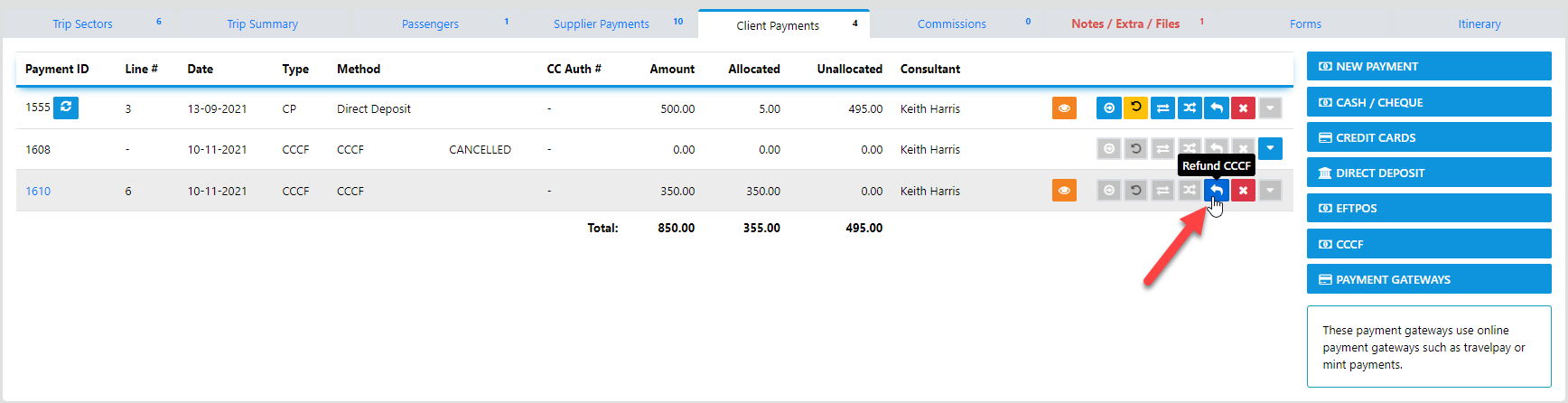
this will reveal the following form
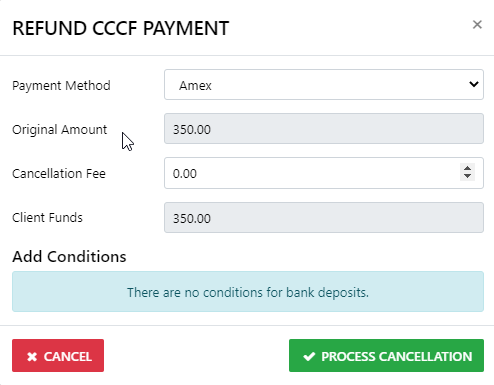
first of all you need to Select the Method that the funds came back to your office
in our example we have selected Amex
now when we created the sector and applied the CCCF to it we had $35 commision in it
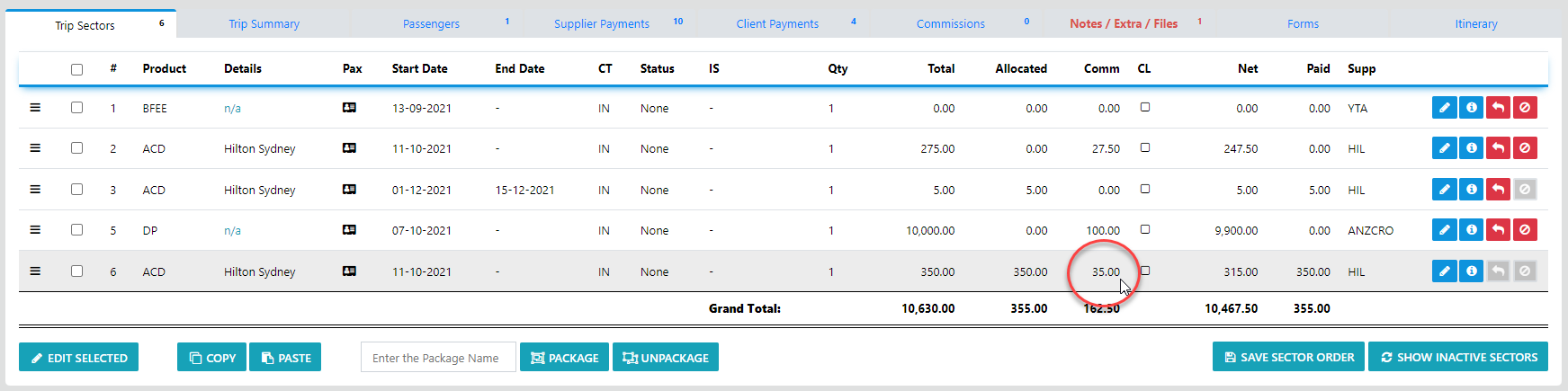
So here is the math
In the Cancellation Fee field you enter the following
1. any fee charged by the supplier - say $22.00
that's a total of $22.00
enter that total into the Cancellation Fee field
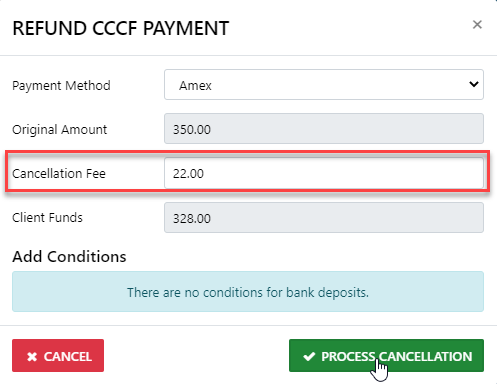
Now once you select Process Cancellation the following will take place
A Refund Receipt will be generated which you can email to your Client
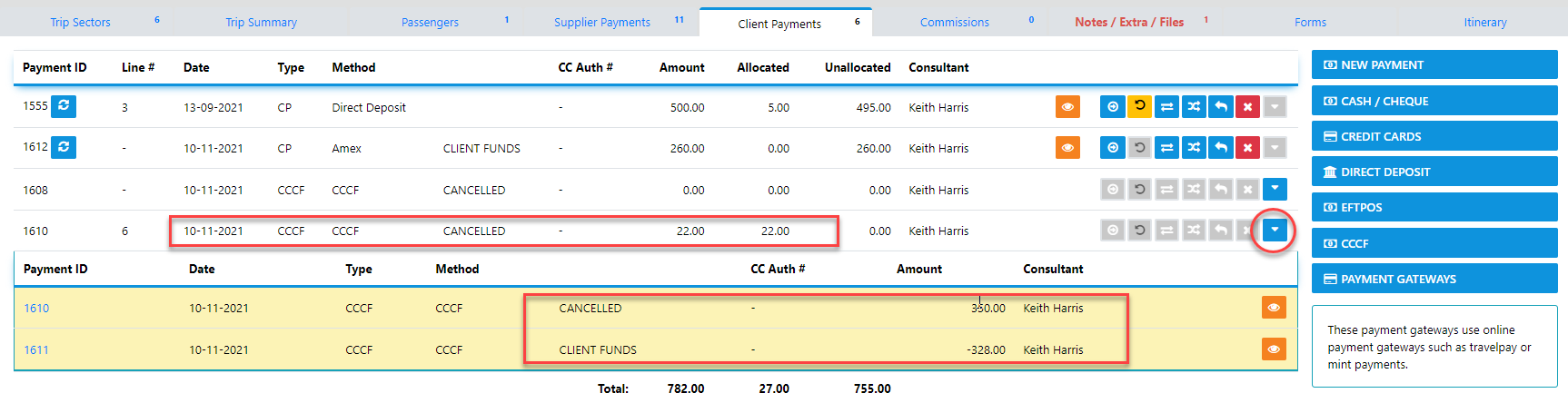
and the original payment will be auto adjusted to reflect your entry leaving the funds still applied to the sector equal to the cancellation fees you applied
the Expander Option displays the cancelled transaction and the amount which has been applied as client funds
Just Three more steps for this example and you are done
First REVALUE the Original Sector to equal the Cancellation fees
that was
fee charged by the supplier - $22.00
PLUS say $33.00 cancellation Fees charged by you
AND
The Recovery of your original Commission of $35.00
That's a Unit Price of $90.00
and a Net of $22.00
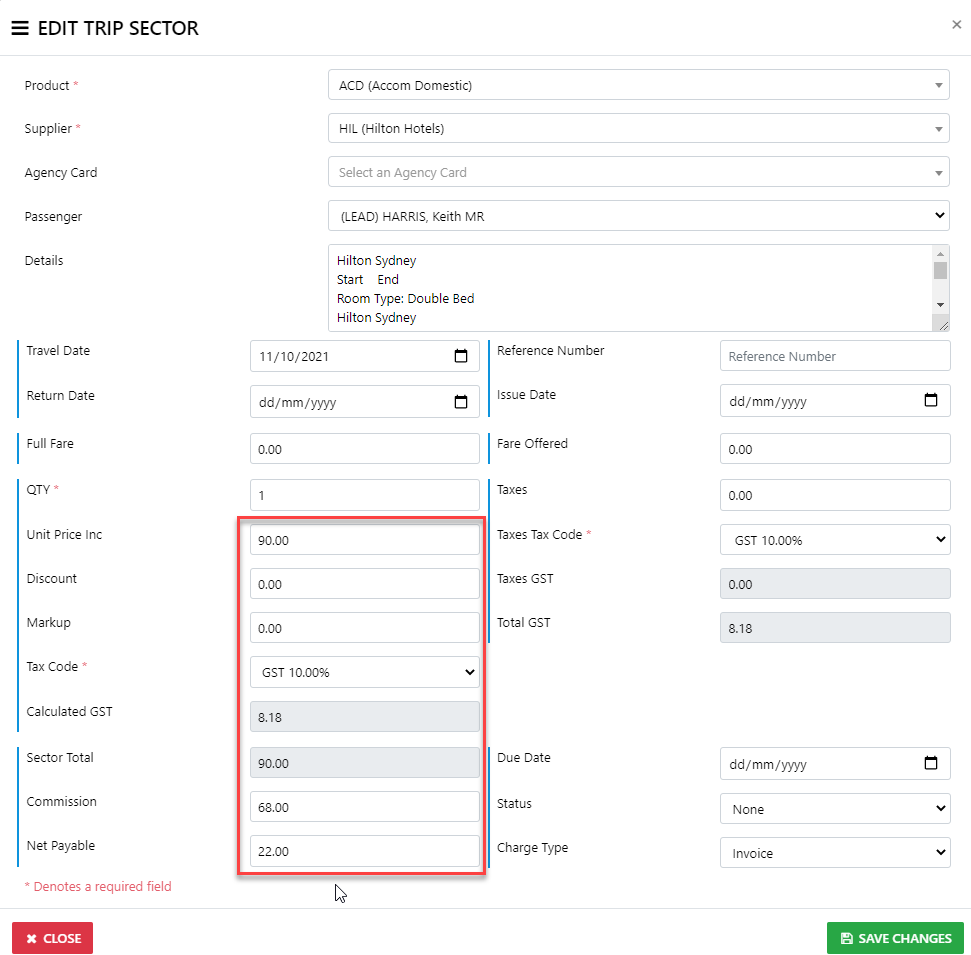
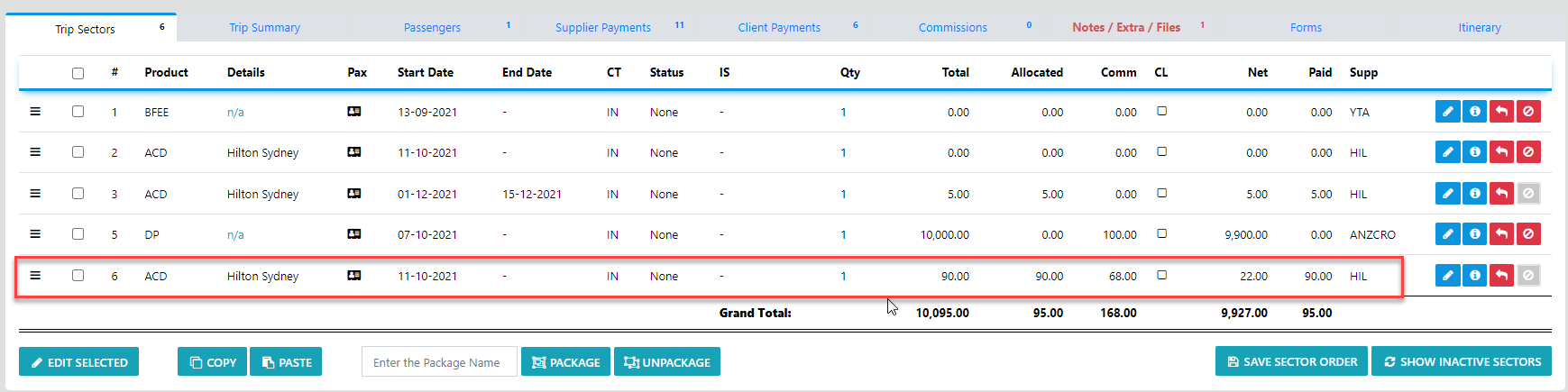
Next you Allocate the $68.00 (your cancellation Fee plus your commission recovery) to the sector
so Now the Sector looks like this
The final step in this example is to refund difference of $260.00 to your Client