
Corporate
gives you access to the following options
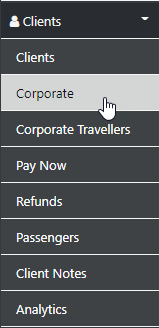
Select Corporate and the filter options will display
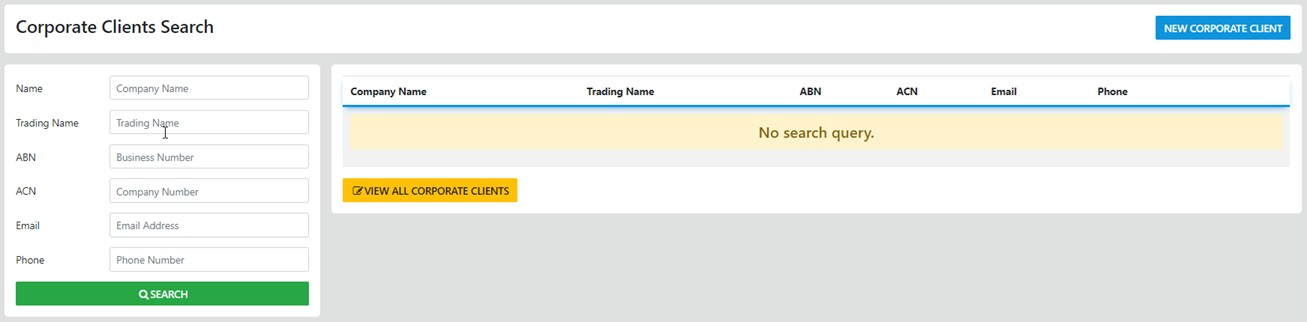
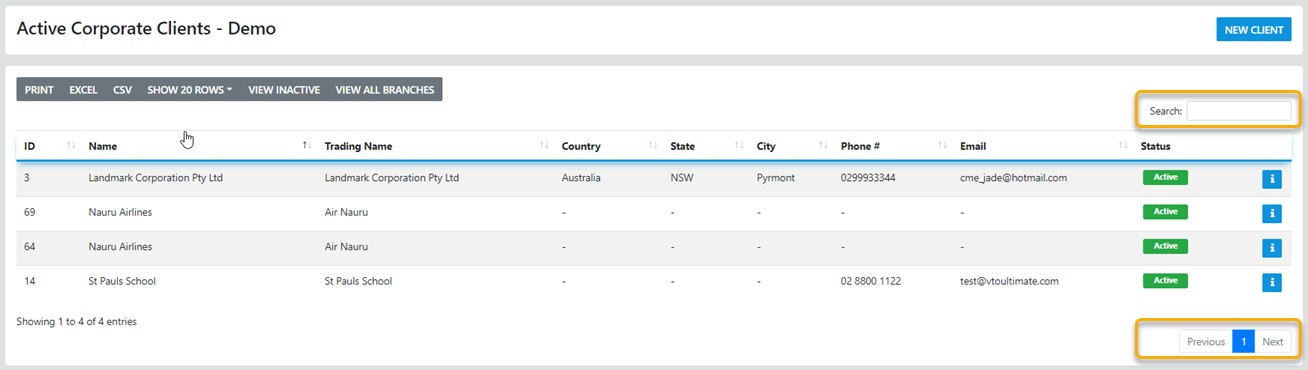
Corporate Clients have the same Search & Pagination options Clients, Passengers, Products, Suppliers etc
You can review the Details for the Corporate entity by using the tool or Create a new Trip in the name of the Corporate buy using the NEW CORPORATE TRIP Tool
Corporate Profiles require additional data as follows;
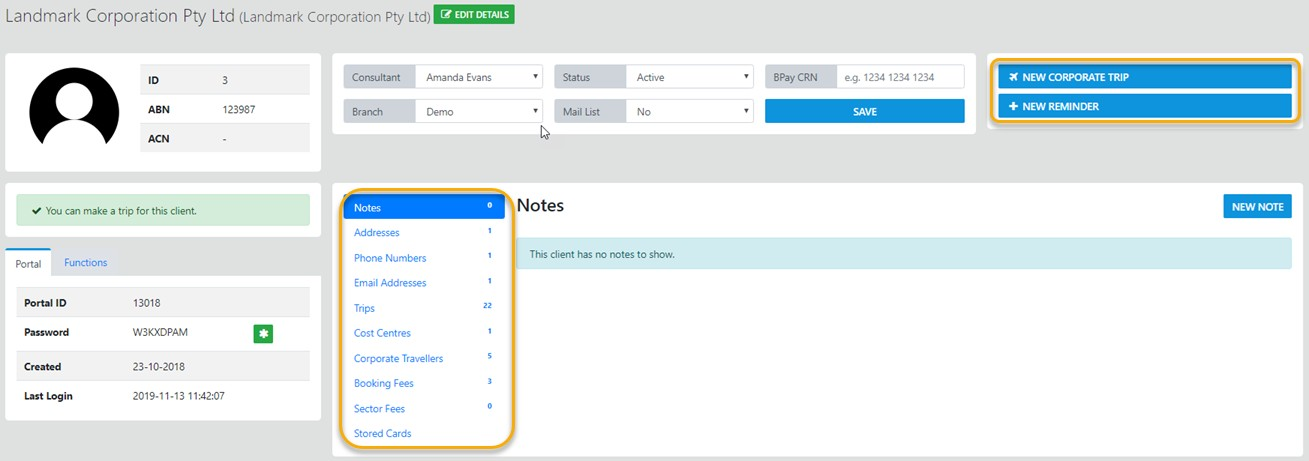
The Basic Profile for the Corporate entity can be Updated via the in the top of the Form
The Company Address etc is entered via the appropriate TABS additional Options are displayed - simply enter the data as desired.
Cost Centres are managed via the Corporate Profile, they are multi level if required and cost centres are assigned to the corporate traveller profile
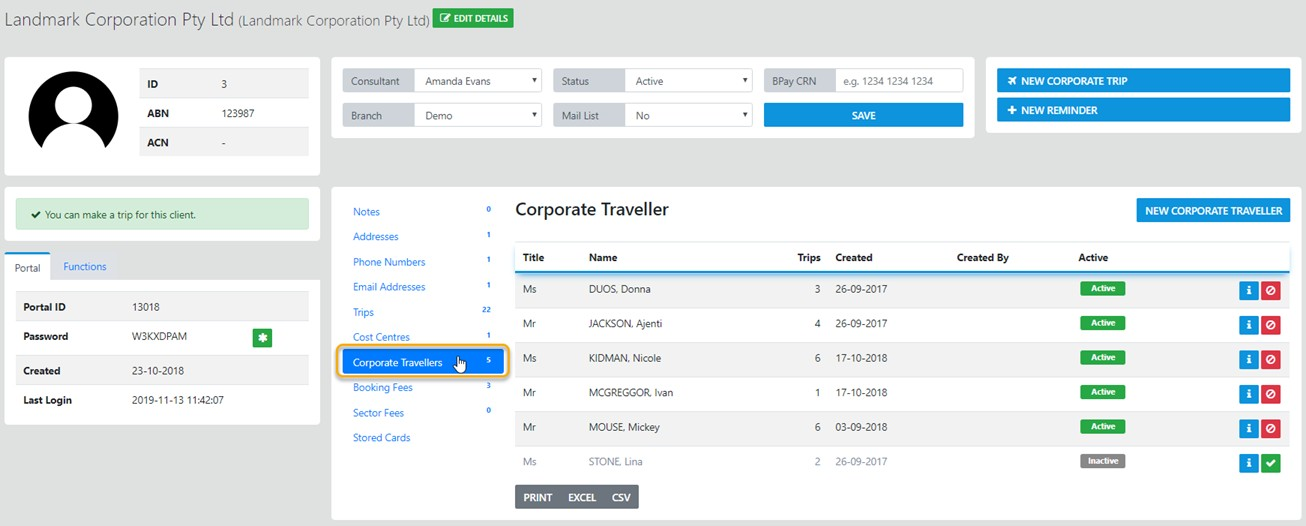
To ADD a new Corporate Traveller select the Corporate Travellers option then select New Corporate Traveller
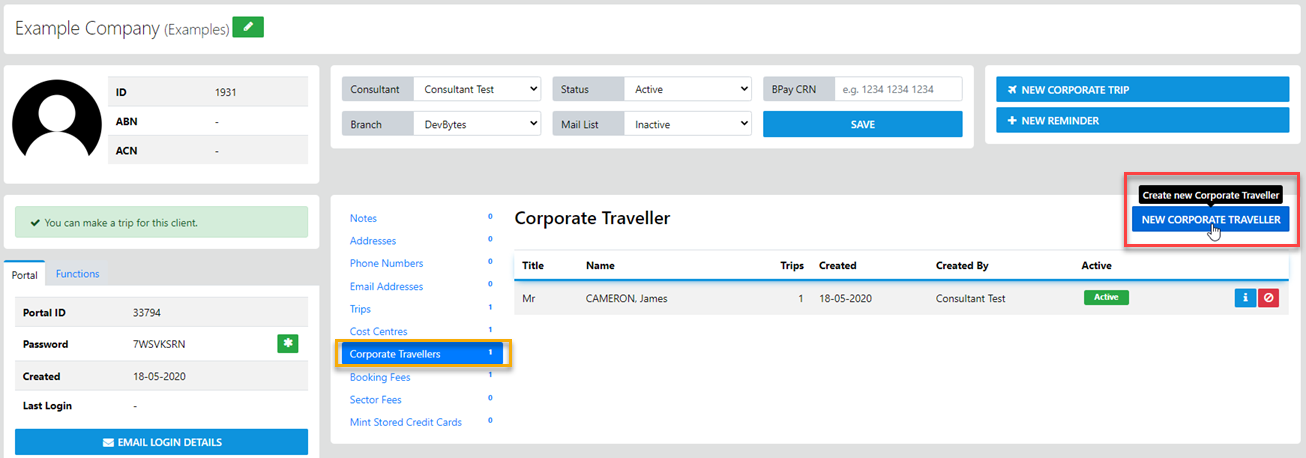
At this point the following form is displayed
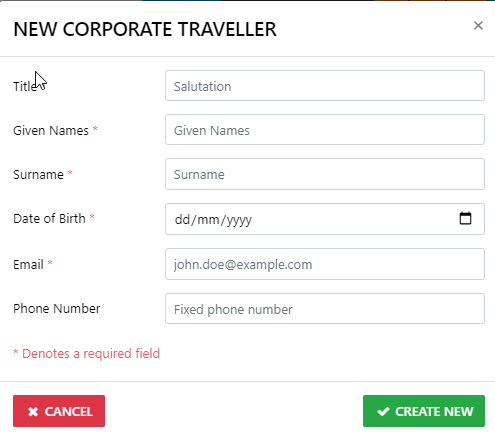
just enter the required details and finish br selecting Create New
Updating Corporate Traveller Profiles
From the sideBar select Clients then Corporate Travellers
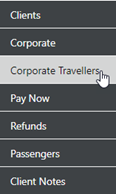
and the filter options will display as follows:-
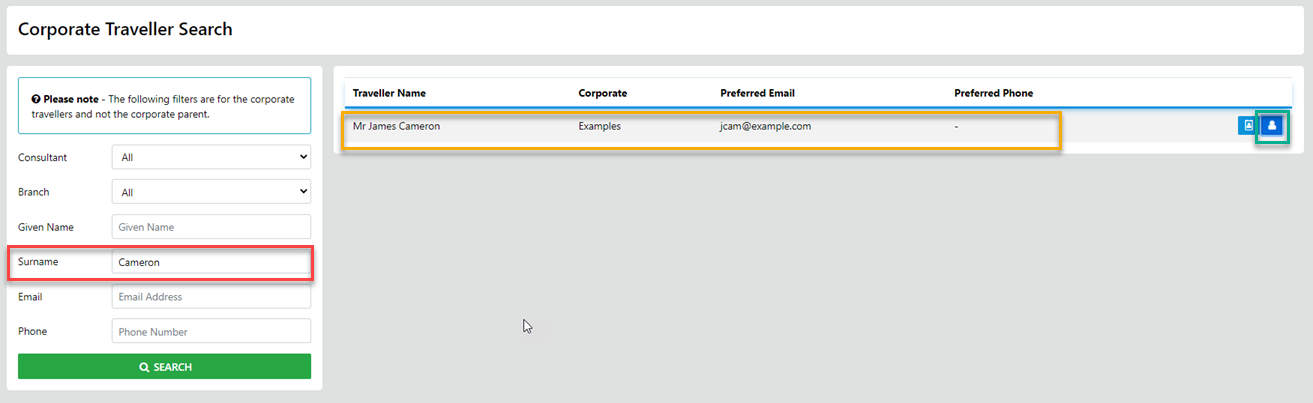
Enter the Surname then select Search and an overview of the profile will display
To update the information select the Traveller Profile option
Note: Traveller Profiles allow for additional data to be stored
On completion of entry of the basic data select "SAVE" and the following will result;
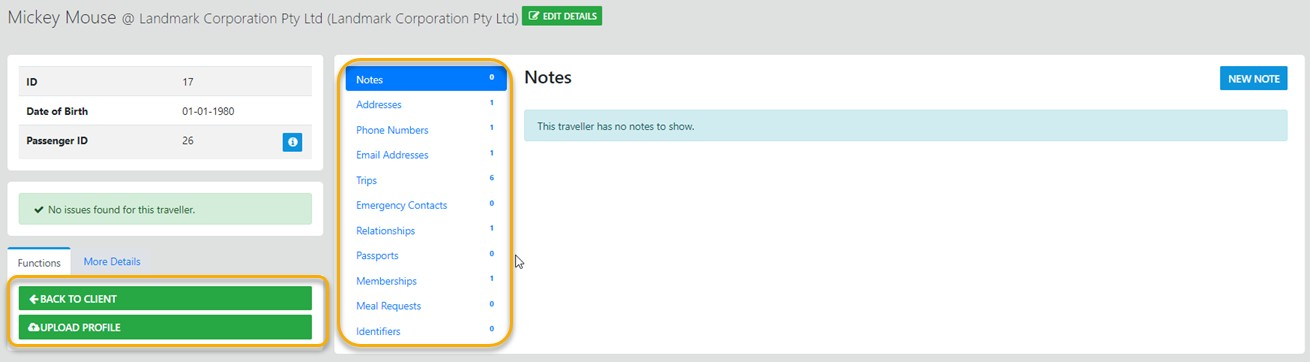
From here you can do the following;
Create a New Trip
Add this Traveller Profile as a Client in their own right
Edit the Profile Data
Expand the selected data set
Full Corporate "Add On" * additional monthly fees apply
With this module you get the additional automated smart features
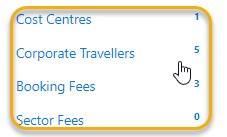
Corporate Cost Centres
Here you name the cost centre and add the annual budget for the cost centre (budgets function on a calendar year basis)

all trips for the Traveler associated with the Cost Centre display the remaining Budget in the Trip and in the Cost Centre
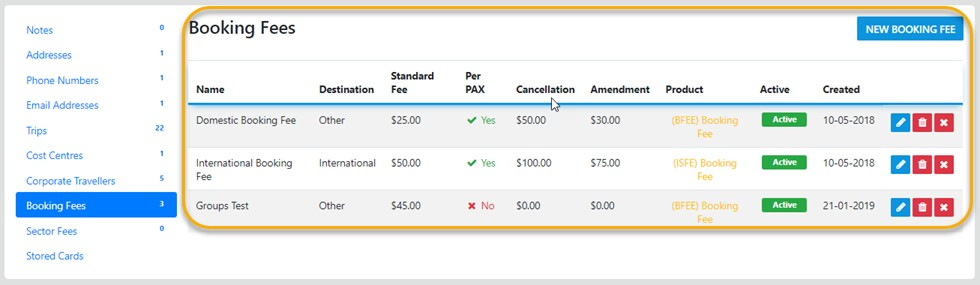
Booking Fees
Here you can store various FEE types which will be automatically added to the Client Trip on creation of the trip, you set all components of this data set as required
Corporate Sector Fees
Again you enter what you require to apply to your client when the "events" occur
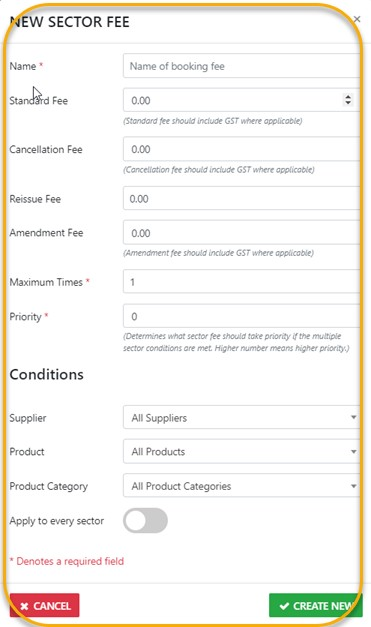
on completion select "Create New"
Stored Cards
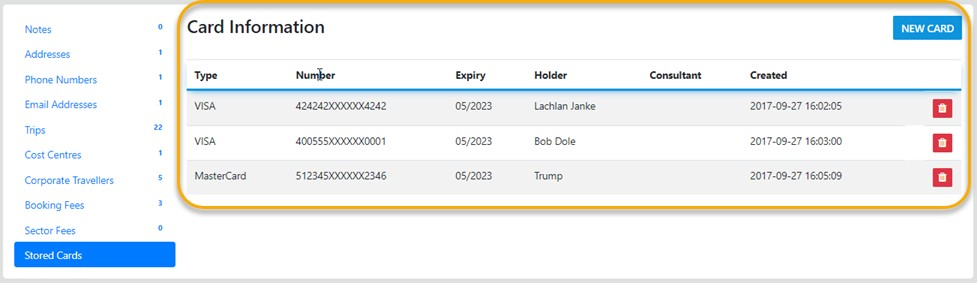
NOTE: Credit Card data is NOT stored in VTO - to store the full card detail you must use the Active - Payment Gateway Options
Once you select Preferred as YES and select "Create" you will be redirected to the Payments Gateway
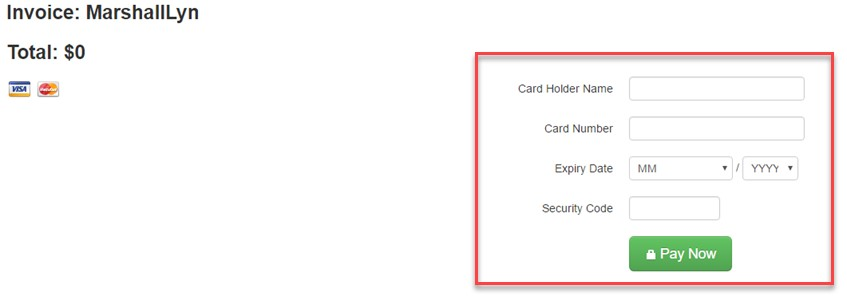
Here you can store all the relevant credit card detail - once completed a token is returned to VTO ULTIMATE which allows re-use of the Card for client purchases