
Export Tip
Create a folder Named Vto Exports on the system which has MYOB installed and always export to that folder.
Select this option to enable export of selected data to MYOB v12 or higher.
Receipts
Select this option to export all Client payments AND Supplier Receipts that have not previously been exported.
NOTE: Client Receipts will NOT export UNLESS the Banking has been processed first.
Next select Export Customer Payments
And the file will download to your Downloads Folder with the link to the file visible just above the System Tray on your computer from here you can move the file to your preferred location
double click the file and and the contents will display on screen
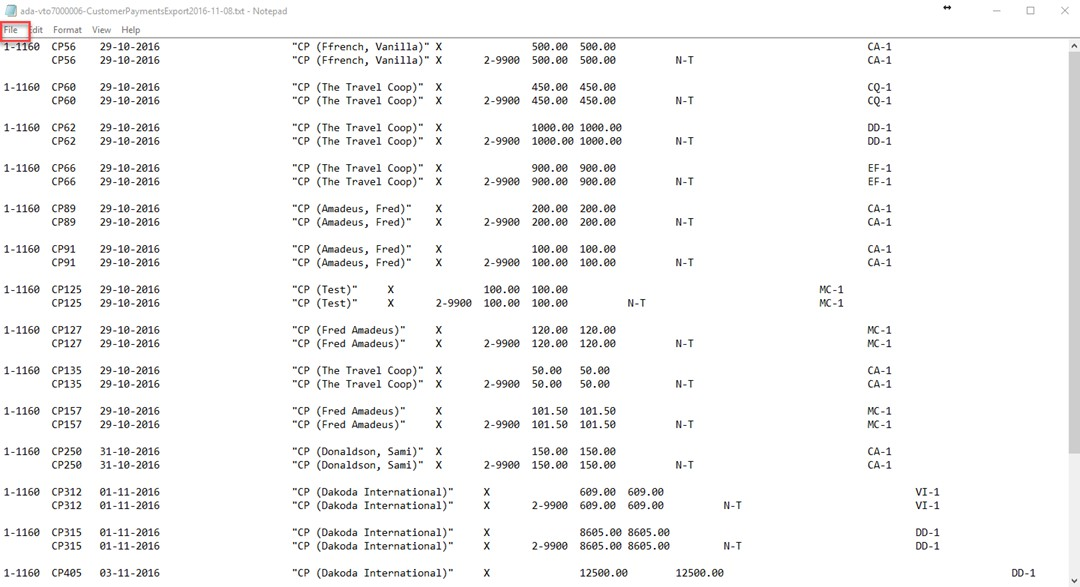
Exported Client Payments and Supplier Receipts are named accordingly -CustomerPaymentsExport.... OR SupplierReceiptsExport.... all you need to now is select File
you can rename this file and save it in the location of your choice on your local Hard Disk.
Re-Export Receipts
This option should only be selected if and when a Client Payment was omitted from a prior export, or, if the Client Payment has since been modified in the Client Payments Module, (in this instance you will need to delete the previous payment from your MYOB Data file- these entries are easily identified during reconciliation of the Client Account in MYOB).
The Re-Export process displays a form listing the date of each export with the option to Re-Export to the far right of the Item.
NOTE: a Re-Export includes ALL items exported for the date displayed, to re-export select the option RE-EXPORT.
Inclusions in the Receipts Export:
Client Receipts excluding CCCF receipts and File Transfers
Supplier Receipts (Refunds & Commission Cheques)
Caution: Each instance of an Export or Re-Export OVERWRITES the Previous Export file unless you have taken the precaution to rename the file.
Payments
Select Payments to export all Supplier Payments and Client Refunds that have not previously been exported separately.
After selecting this option all previously un-exported transactions will be included in your Export
Next – select Export Supplier Payments - Repeat the steps to Export Client Refunds
And the file will download to your Downloads Folder with the link to the file visible just above the System Tray on your computer from here you can move the file to your preferred location
double click the file and and the contents will display on screen as previously displayed
Exported Supplier Payments and Client Refunds are named accordingly -SupplierPaymentsExport.... OR ClientRefundsExport.... all you need to now is select File
you can rename this file and save it in the location of your choice on your local Hard Disk.
Re-Export Payments
This option should only be selected if and when a Supplier Payment was omitted from a prior export, or, if the Supplier Payment has since been modified in the Supplier Payments Module, (in this instance you will need to delete the previous payment from your MYOB Data file- these entries are easily identified during reconciliation of the Client Account in MYOB).
The Re-Export process displays a form listing the date of each export with the option to Re-Export to the far right of the Item.
NOTE: a Re-Export includes ALL items exported for the date displayed.
Inclusions in the Payments Export:
Supplier Payments excluding CCCF payments and File Transfers
Client Refunds (including Refunded erred client receipts)
Caution: Each instance of an Export or Re-Export OVERWRITES the Previous Export file unless you have taken the precaution to rename the file.
Commissions
Select this option to export all Claimed Commissions that have not previously been exported.
After selecting this option you will be prompted to select the Date Range to be included in your Export
Next – select Export Commissions
And the file will download to your Downloads Folder with the link to the file visible just above the System Tray on your computer from here you can move the file to your preferred location
double click the file and and the contents will display on screen as previously displayed
Exported Supplier Payments and Client Refunds are named accordingly -SupplierPaymentsExport.... OR ClientRefundsExport.... all you need to now is select File
you can rename this file and save it in the location of your choice on your local Hard Disk.
Next – select EXPORT
If there are Payments not previously exported you will be prompted to choose one of the following options;
Open – Save – Close
You should ALWAYS choose Save
Exported Commissions are named commissions_exported.txt – you can rename this file and save it in the location of your choice on your local Hard Disk. (refer to Export Tip)
Please Note: Commissions are exported from Vto as single items with the posting date being the date of settlement (that is when the commission became claimable and is reportable in your BAS Statement)
Re-export Commissions
This option should only be selected if and when a Commission was omitted from a prior export, or, if the commission has since been modified in Vto, (in this instance you will need to delete or adjust the previous commission in your MYOB Data file- these entries are now more easily identified).
Inclusions in the Commissions Export:
All claimed commissions